Flow Monitor
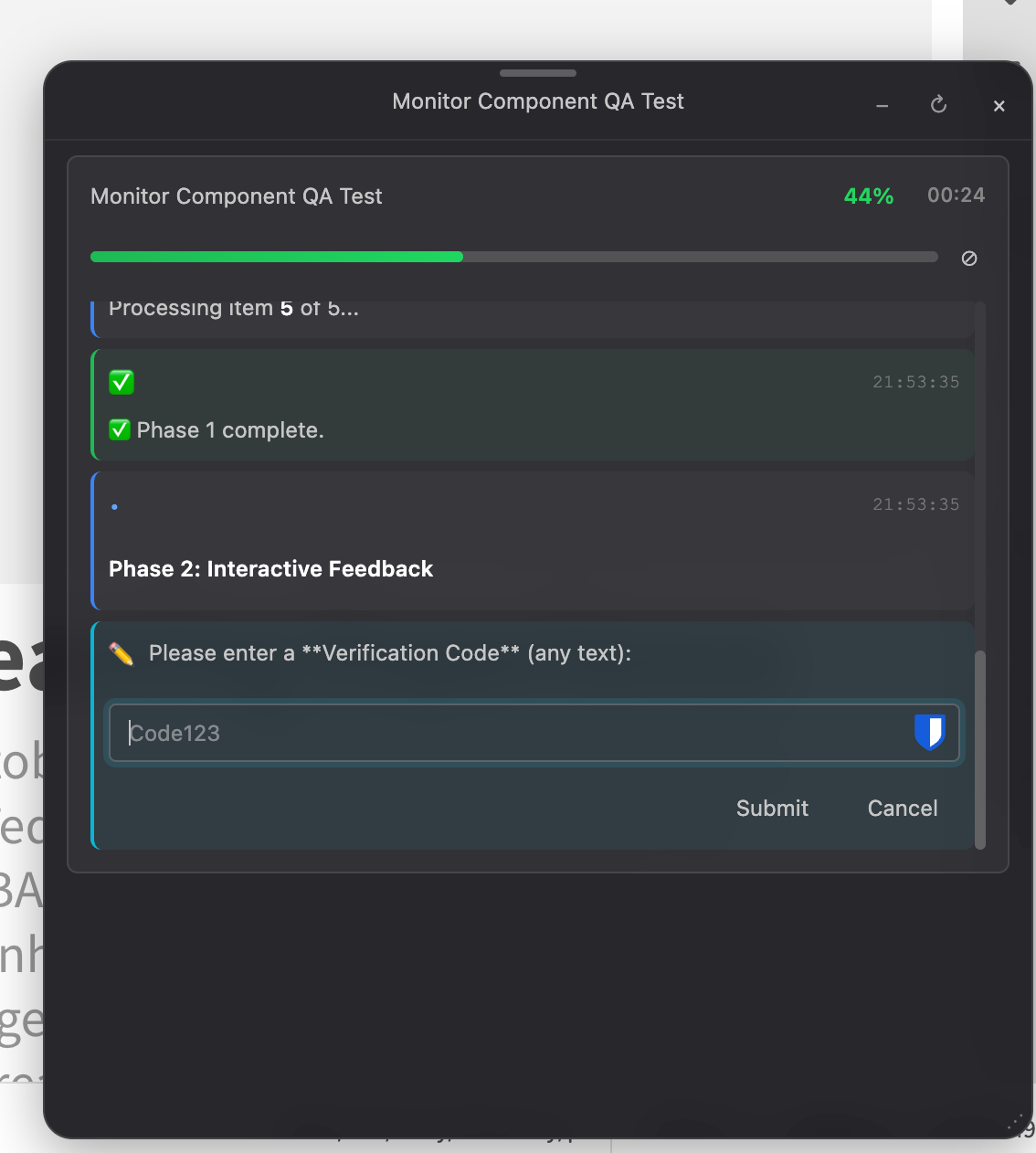
The Flow Monitor provides real-time visualization and control of running ProActions workflows. It displays progress, allows cancellation, shows feedback messages, and supports interactive user prompts in a customizable floating interface.
Overview
The Flow Monitor is a powerful feature that enhances the user experience when running ProActions workflows:
- Real-time Progress Tracking: See exactly what's happening as your workflows execute
- Cancellation Support: Stop long-running flows with a single click
- Interactive Feedback: Respond to prompts and confirmations without interrupting the flow
- Streaming Content: Watch LLM responses appear in real-time
- Smart Auto-Hide: Monitor appears when needed and hides when done
- Customizable: Control position, theme, and behavior to match your preferences
When to Use
The monitor is especially useful for:
- Long-running workflows with multiple LLM calls or external service requests
- Complex automations where you need visibility into each step
- Interactive flows that require user input or confirmation
- Debugging to understand workflow execution and identify issues
- User training to demonstrate what ProActions is doing
Configuration
Global Configuration
Configure the monitor globally in your main configuration file:
AI_KIT:
  MONITOR:
    enabled: true # Enable monitor globally
    position: bottom-right # Position on screen
    theme: dark # Visual theme (dark/light)
    autoHide: true # Auto-hide when flows complete
    autoHideDelay: 3000 # Delay before hiding (ms)
    maxVisible: 5 # Max concurrent executions shown
    apps: # Which apps to show monitor in
      - all # Options: swing, prime, all
    showProgress: true # Show progress bars
    showStepNames: true # Show current step name
    showElapsedTime: true # Show elapsed time
    enableCancellation: true # Allow cancelling flows
    confirmCancellation: true # Confirm before cancelling
    renderMarkdown: true # Render markdown in feedback
Configuration Levels
ProActions supports monitor configuration at three levels:
-
Global Configuration (
MONITOR):- Controls default behavior for all flows
- Includes UI settings:
position,theme,autoHide,autoHideDelay,maxVisible,apps - Includes behavioral settings:
showProgress,showStepNames,showElapsedTime,enableCancellation,confirmCancellation,renderMarkdown - Includes permissions:
forUsers,forGroups,forTeams enabledcan betrue,false, or'ondemand'
-
Section-Level Configuration (
monitorproperty):- Overrides global settings for all actions in a section
- Only includes behavioral settings (cannot change position, theme, etc.)
enabledis boolean only (trueorfalse, NOT'ondemand')- All properties are optional
-
Action-Level Configuration (
monitorproperty):- Overrides global and section settings for a specific action
- Same properties as section-level (behavioral settings only)
- Takes precedence over section and global settings
Property Inheritance:
- Action
monitor→ Sectionmonitor→ GlobalMONITOR→ Defaults - UI properties (position, theme, etc.) come from global config only
- Behavioral properties cascade from action → section → global
Configuration Options
enabled (Global)
Controls whether the monitor is active globally:
Controls whether the monitor is active:
true: Always enabled for all flowsfalse: Completely disabled'ondemand'(default): Only enabled when specific actions request it
MONITOR:
  enabled: ondemand # Monitor only shows for actions that explicitly enable it
position
Where the monitor appears on screen:
top-right: Upper right cornerbottom-right(default): Lower right cornertop: Top centerbottom: Bottom centercenter: Screen center
MONITOR:
  position: bottom-right
theme
Visual appearance:
dark(default): Dark theme with light textlight: Light theme with dark text
MONITOR:
  theme: dark
autoHide
Whether to automatically hide the monitor when no flows are running:
MONITOR:
  autoHide: true
  autoHideDelay: 3000 # Wait 3 seconds before hiding
maxVisible
Maximum number of concurrent executions to display:
MONITOR:
  maxVisible: 5 # Show up to 5 running flows
apps
Which applications should show the monitor:
MONITOR:
  apps:
    - swing # Only in Swing
    # - prime  # Only in Prime
    # - all    # In all applications (default)
Display Options
Control what information is shown:
MONITOR:
  showProgress: true # Show progress bars
  showStepNames: true # Show current step name
  showElapsedTime: true # Show elapsed time
  renderMarkdown: true # Render markdown in feedback messages
Cancellation Options
Control flow cancellation behavior:
MONITOR:
  enableCancellation: true # Allow users to cancel flows
  confirmCancellation: true # Show confirmation dialog before cancelling
Action-Level Configuration
Override monitor settings for specific actions:
- title: 'Generate Long Report'
  monitor:
    enabled: true # Enable monitor (boolean only)
    showProgress: true # Show progress bar
    showStepNames: true # Show current step
    showElapsedTime: true # Show elapsed time
    enableCancellation: true # Allow cancellation
    confirmCancellation: false # Don't confirm before cancelling
    renderMarkdown: true # Render markdown in feedback
  flow:
    - step: HUB_COMPLETION
      instruction: 'Generate a comprehensive report...'
      # ... more steps
Available Properties (all optional):
enabled: boolean - Enable/disable monitor for this actionshowProgress: boolean - Show progress barshowStepNames: boolean - Show current step nameshowElapsedTime: boolean - Show elapsed timeenableCancellation: boolean - Allow user to cancelconfirmCancellation: boolean - Confirm before cancellingrenderMarkdown: boolean - Render markdown in feedback messages
Note: Action-level monitor cannot control UI properties like position, theme, autoHide, etc. Those are global-only settings.
Section-Level Configuration
Apply monitor settings to all actions in a section:
AI_KIT:
  SECTIONS:
    - section: 'Content Generation'
      monitor:
        enabled: true # Enable for all actions in section
        showProgress: true # Show progress for all actions
        showStepNames: true # Show step names for all actions
      actions:
        - title: 'Generate Headlines'
          # Inherits monitor settings from section
          flow:
            # ...
        - title: 'Generate Summary'
          monitor:
            enabled: true
            showProgress: false # Override section setting
          flow:
            # ...
Available Properties: Same as action-level (see above). All properties are optional and override global settings for all actions in the section.
Permission-Based Access
Restrict monitor visibility to specific users, groups, or teams:
MONITOR:
  enabled: true
  forUsers:
    - john.doe
    - jane.smith
  forGroups:
    - editors
    - administrators
  forTeams:
    - content-team
Usage
Basic Usage
With enabled: 'ondemand' (default), the monitor only appears for actions that explicitly enable it:
- title: 'Process with Monitor'
  monitor:
    enabled: true
  flow:
    - step: MONITOR_STATUS
      message: 'Starting process...'
      type: info
    - step: HUB_COMPLETION
      instruction: 'Analyze this content...'
    - step: MONITOR_STATUS
      message: 'Process complete!'
      type: success
Monitor Steps
ProActions provides four dedicated steps for monitor interaction:
MONITOR_STATUS
Display status messages during workflow execution:
- step: MONITOR_STATUS
  message: 'Connecting to API...'
  type: status # Options: info, status, warning, success, error

- step: HUB_COMPLETION
  instruction: 'Generate content...'

- step: MONITOR_STATUS
  message: 'Generation complete!'
  type: success
Properties:
message: Status message to display (supports variable resolution)type: Message type (info,status,warning,success,error)clear: Clear previous messages before showing this one (boolean)
MONITOR_CHOICE
Ask user to select from multiple options:
- step: MONITOR_CHOICE
  message: 'Select export format:'
  choices:
    - id: pdf
      label: '📄 PDF Document'
    - id: docx
      label: '📝 Word Document'
    - id: html
      label: '🌐 HTML Page'
  outputs:
    - type: text
      name: format

- step: HUB_COMPLETION
  instruction: 'Export to {{ flowContext.format }} format'
Properties:
message: Prompt asking user to selectchoices: Array of{id, label}objectsdefault: ID of default/pre-selected choiceallowCancel: Show cancel option (default: true)
MONITOR_CONFIRM
Ask user for Yes/No confirmation:
- step: MONITOR_CONFIRM
  message: 'Proceed with deletion?'
  confirmLabel: 'Delete'
  cancelLabel: 'Cancel'
  outputs:
    - type: text
      name: confirmed

- step: IF
  condition: "{{ flowContext.confirmed }}"
  then:
    - step: ...
Properties:
message: Confirmation questionconfirmLabel: Label for confirm button (default: "Confirm")cancelLabel: Label for cancel button (default: "Cancel")
MONITOR_INPUT
Ask user for text input:
- step: MONITOR_INPUT
  message: 'Enter a title:'
  placeholder: 'e.g., Breaking News...'
  defaultValue: '{{ flowContext.suggestedTitle }}'
  required: true
  outputs:
    - type: text
      name: userTitle
Properties:
message: Prompt asking for inputplaceholder: Placeholder text for input fielddefaultValue: Pre-filled valuerequired: Whether input is required (boolean)
Custom Step Names
Use monitorLabel to customize how a step appears in the monitor:
- step: HUB_COMPLETION
  monitorLabel: 'Generating headline...'
  instruction: 'Create a compelling headline'

- step: DEEPL_TRANSLATE
  monitorLabel: 'Translating to {{ flowContext.targetLang }}...'
  target_lang: '{{ flowContext.targetLang }}'
Without monitorLabel, steps show their step name (e.g., "HUB_COMPLETION"). With monitorLabel, you can provide user-friendly descriptions that support variable resolution.
Advanced Features
Monitor API (JavaScript)
Control the monitor programmatically via JavaScript:
// Get the API
const aikit = SwingProActions.getAiKitApi();

// Show/hide monitor
aikit.monitor.show();
aikit.monitor.hide();
aikit.monitor.toggle(); // Returns true if now visible

// Configure at runtime
aikit.monitor.configure({
  position: 'bottom-left',
  theme: 'light',
  autoHide: false,
  maxVisible: 10,
});

// Reset position (if dragged off-screen)
aikit.monitor.resetPosition();

// Check active executions
const count = aikit.monitor.getActiveCount();
console.log(`${count} flows running`);
Programmatic Interaction (SCRIPTING Step)
Use the client object in SCRIPTING steps to interact with the monitor:
Basic Feedback
- step: SCRIPTING
  script: |
    client.addFeedback('info', 'Processing data...');

    // Do some work
    await processData();

    client.addFeedback('success', 'Processing complete!');
    client.addFeedback('warning', 'Some items were skipped.');
Feedback types: 'info', 'status', 'warning', 'success', 'error'
Streaming Feedback
Stream content to the monitor as it arrives (useful for custom LLM integration):
- step: SCRIPTING
  script: |
    const feedbackId = client.startStreamingFeedback();

    for (const chunk of responseChunks) {
      client.appendStreamingFeedback(feedbackId, chunk);
    }

    client.completeStreamingFeedback(feedbackId);
Structured Data - Tables
Display tabular data in the monitor:
- step: SCRIPTING
  script: |
    const data = [
      { name: 'John Doe', age: 30, city: 'NYC' },
      { name: 'Jane Smith', age: 25, city: 'LA' },
      { name: 'Bob Johnson', age: 35, city: 'Chicago' }
    ];

    client.addTableFeedback(data, 'User Data', {
      maxRows: 10
    });
Structured Data - JSON
Display formatted JSON with syntax highlighting:
- step: SCRIPTING
  script: |
    const apiResponse = {
      status: 'success',
      data: { id: 123, title: 'Example' },
      metadata: { timestamp: Date.now() }
    };

    client.addJsonFeedback(apiResponse, 'API Response', {
      maxDepth: 3
    });
Structured Data - Key-Value Pairs
Display data as labeled key-value pairs:
- step: SCRIPTING
  script: |
    client.addKeyValueFeedback({
      'Document ID': '12345',
      'Author': 'John Doe',
      'Status': 'Published',
      'Last Modified': '2024-01-30'
    }, 'Document Info');
Structured Data - Metrics
Display numerical metrics with labels:
- step: SCRIPTING
  script: |
    client.addMetricsFeedback({
      'Total Words': 1500,
      'Reading Time': '7 min',
      'Sentences': 42,
      'Readability Score': '8.5/10'
    }, 'Content Analysis');
Smart Auto-Hide
The monitor intelligently decides when to hide:
- Never hides if there are errors (user must acknowledge)
- Never hides if interactive prompts are pending
- Never hides while streaming content
- Never hides while user is hovering over it
- Respects manual close intent for 5 minutes
Cancellation Handling
When a user cancels a flow:
- Confirmation dialog appears (if
confirmCancellation: true) - Flow receives abort signal
- All steps check for cancellation
- Cleanup operations run
- Monitor shows cancellation status
Troubleshooting
Monitor Not Appearing
Problem: Monitor doesn't show when running flows.
Solutions:
- Check
enabledsetting (must betrueor action must havemonitor.enabled: true) - Verify
appssetting includes your current application - Check permission settings (
forUsers,forGroups,forTeams) - Ensure you're not in a context where monitor is disabled
Monitor Stays Visible
Problem: Monitor doesn't auto-hide after flows complete.
Solutions:
- Check
autoHideis set totrue - Look for error messages (monitor never auto-hides on errors)
- Check if interactive prompts are pending
- Verify no streaming content is active
- Try manually closing and reopening
Cancellation Not Working
Problem: Cancel button doesn't stop the flow.
Solutions:
- Verify
enableCancellation: true - Check if steps properly handle abort signals
- Some external service calls may not be cancellable
- Review step implementation for cancellation support
Progress Not Updating
Problem: Progress bar doesn't move or update.
Solutions:
- Ensure
showProgress: true - Progress is calculated automatically based on step completion
- Check that
totalStepsis set correctly in your action - Confirm flow is actually running (not stuck)
Theme Issues
Problem: Monitor theme doesn't match preference.
Solutions:
- Set
theme: 'dark'ortheme: 'light'explicitly - Clear browser cache
- Check for CSS conflicts
- Verify theme setting isn't overridden at action level
Best Practices
When to Enable
- Enable globally for development and testing environments
- Use ondemand for production (let actions opt-in)
- Enable per-action for long-running or complex workflows
- Disable for simple, fast actions that don't need monitoring
Progress Reporting
- Report progress at meaningful intervals (not every millisecond)
- Include descriptive messages with progress updates
- Use percentage for predictable durations
- Use indeterminate for unpredictable operations
User Experience
- Set reasonable
autoHideDelay(3-5 seconds) - Enable
confirmCancellationfor destructive operations - Use
renderMarkdownfor formatted feedback messages - Position monitor where it doesn't obstruct content
Performance
- Limit
maxVisibleto avoid cluttering the screen - Don't update progress too frequently (causes UI lag)
- Use streaming feedback judiciously (bandwidth consideration)
Related Documentation
- Configuration Basics - Understanding ProActions configuration
- Workflow Design - Designing effective workflows
- Forms and Inputs - User interaction patterns
- Debugging Flows - Troubleshooting workflows
Examples
Simple Monitoring
- title: 'Generate Content'
  monitor:
    enabled: true
  flow:
    - step: HUB_COMPLETION
      instruction: 'Generate a blog post about...'
Status Messages During Processing
- title: 'Batch Processing'
  monitor:
    enabled: true
    showProgress: true
  flow:
    - step: FOR
      var: item
      items: '{{ flowContext.items }}'
      do:
        - step: MONITOR_STATUS
          message: 'Processing item {{ flowContext.item_index }} of {{ flowContext.items.length }}...'
          type: status
        - step: HUB_COMPLETION
          instruction: 'Process {{ flowContext.item }}'
User Confirmation Before Action
- title: 'Delete Document'
  monitor:
    enabled: true
    confirmCancellation: true
  flow:
    - step: MONITOR_CONFIRM
      message: 'Are you sure you want to delete this document?'
      confirmLabel: 'Delete'
      cancelLabel: 'Cancel'
      outputs:
        - type: text
          name: confirmed

    - step: IF
      condition: "{{ flowContext.confirmed == 'true' }}"
      then:
        - step: MONITOR_STATUS
          message: 'Deleting document...'
          type: status
        - step: DELETE_OBJECT
        - step: MONITOR_STATUS
          message: 'Document deleted successfully!'
          type: success