FILE_UPLOAD
Opens a file upload dialog (modal) and stores selected file(s) into the flow context. Supports output mapping via the outputs config or default file output.
Images
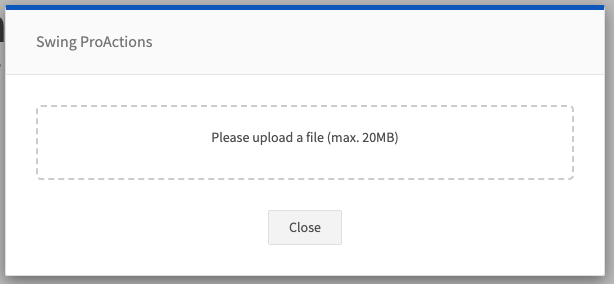
At a glance
- Category UI
- Aliases USER_FILE_UPLOAD
- Version: 1.0.0
- Applications: all
- Scope: all
Config Options
| Name | Description | Default | Required | Resolved | Constraints | Conditional Rules |
|---|---|---|---|---|---|---|
promptText | Prompt text shown in the upload dialog. | None | false | true | None | None |
accept | Comma-separated list of accepted MIME types for upload (e.g. "image/png,application/pdf"). | None | false | false | None | None |
fileTypes | Array of accepted MIME types for the upload (e.g. ["audio/mp3","audio/wav"]). | None | false | false | None | None |
maxSize | Maximum file size allowed in bytes. | None | false | false | None | None |
Outputs
| Type | Description | Optional |
|---|---|---|
file | Default output: the uploaded File object (when no explicit outputs are configured). | false |
text | If configured, file content can be read and stored as text in the configured output name. | true |
arrayBuffer | If configured, file content can be read as an ArrayBuffer into the configured output name. | true |
Examples
Upload a single file (default behavior)
- step: FILE_UPLOAD
  promptText: "Please upload your document"
Upload and map outputs
- step: FILE_UPLOAD
  promptText: "Upload an audio file"
  outputs:
    - type: file
      name: uploadedFile
    - type: text
      name: fileText
See Also
General Resources: